Notify Teams post when a Planner task is completed
Problem to solve
- Automate task management by integrating Teams and Planner - Automatically notify when a task is completed Manage tasks created from Teams conversations in Planner, and unify task management by notifying Teams when tasks are completed.
Completion Image
Ingredients
 Teams Connector
 Planner Connector
How to make
This recipe is useful when combined with Create a Planner task from a Teams post. *This creates tasks starting from Teams. Since there is a post in the Teams channel with the same subject as the task, we will send a completion notification as a reply to it. This allows for an integration where task creation/completion is done in Planner, and communication happens in Teams.
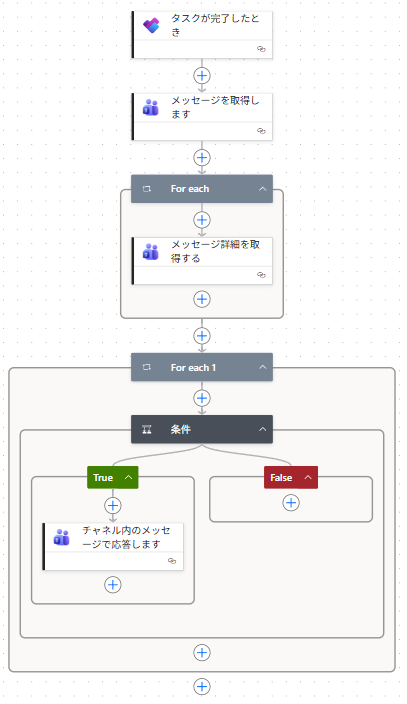
- 1. Set up the trigger "When a task is completed"
Select the ones to be managed for [Group ID] and [Plan ID].

- 2. Set up the action "Get messages"
For [Team] and [Channel], specify the Teams channel prepared for task creation.

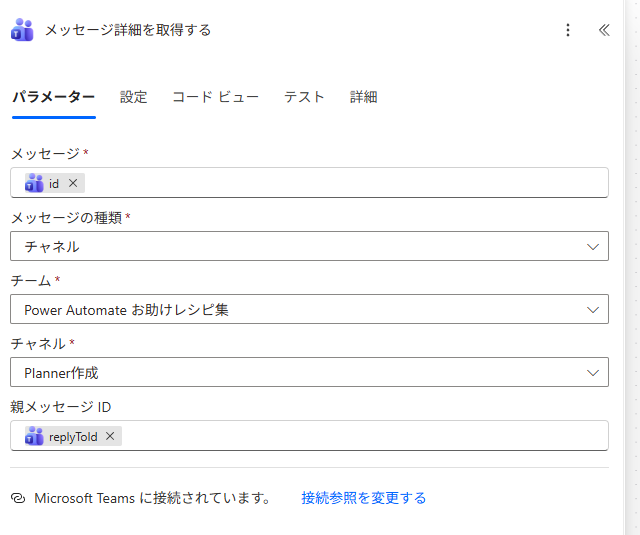
- 3. Set up the action "Get message details"
In this action, identify the Teams post for task creation.
Set [Message] to "id" and [Message type] to "Channel".
Keep [Team] and [Channel] the same as in step 2.
Select "replyToId" for [Parent message ID] to identify the parent message to reply to.
*When you create this action, an Apply to each will be created automatically (since there can be multiple posts in a channel).
- 4. Set the condition
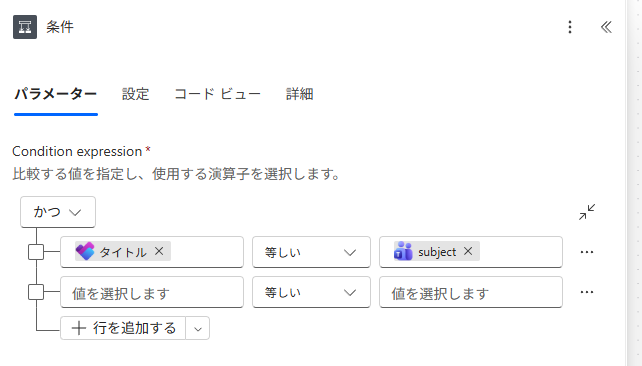
Perform matching using the subject of the Planner task and the Teams post.
Set the condition to "subject" is "equal to" "Title".
*When you set "subject" in this condition, an Apply to each will be created automatically (since there can be multiple posts in a channel).
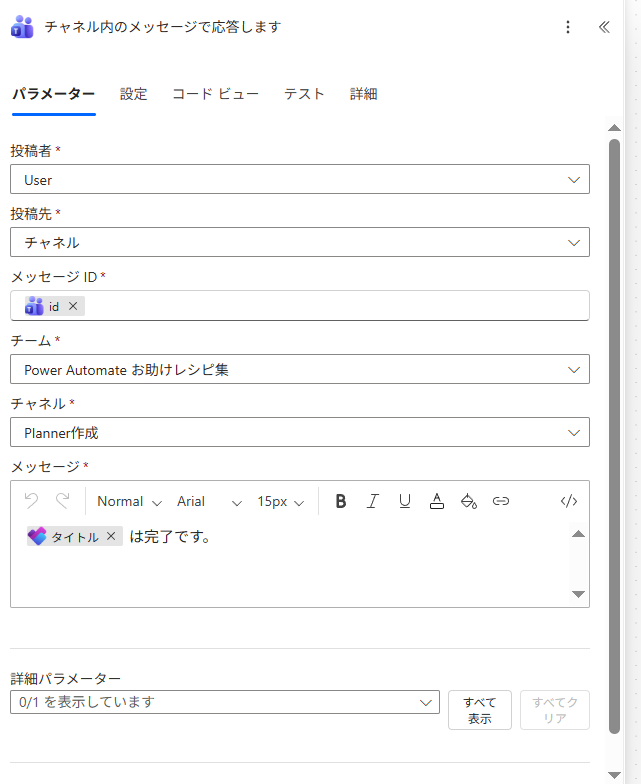
- 5. Set up the action "Reply with a message in a channel"
Set [Post as] to "User" so that the person who completed it sends the reply.
Set [Post in] to "Channel" and [Message ID] to "id".
Keep [Team] and [Channel] the same as set in steps 2 and 3.
In [Message], add the "Title" and clearly state that the corresponding task has been completed.
- 6. Operation Check
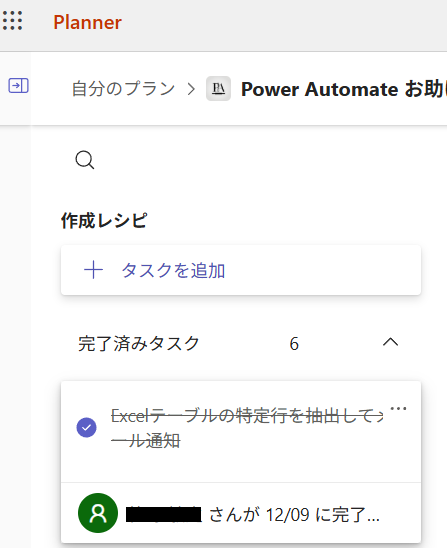
Complete the task created originating from the Teams post.
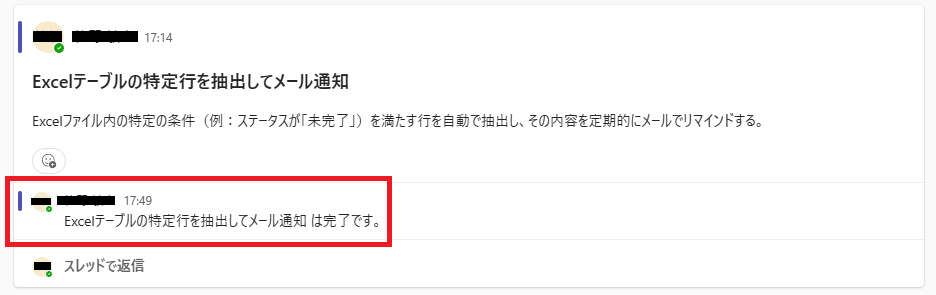
The message set in step 5 is replied to the post with the same subject as the task.
Related Recipes
Related Sites
Power BI Recipe Book

A recipe site for learning practical ways to use Power BI.
We introduce recipes by purpose and function. Create beautiful charts smoothly.
Getting Started with Power Apps

A recipe site for learning how to develop Power Apps from scratch.
No specialized knowledge is required, and we introduce practical recipes for daily work.