Remind Planner Tasks Approaching Expiration
Problem to solve
Manage deadlines for tasks created in Planner. - Too many tasks to manage deadlines effectively - Overdue tasks constantly occur - Task deadlines cannot be known without looking at Planner Create a system that automatically notifies you when deadlines approach, freeing you from being overwhelmed by Planner task management.
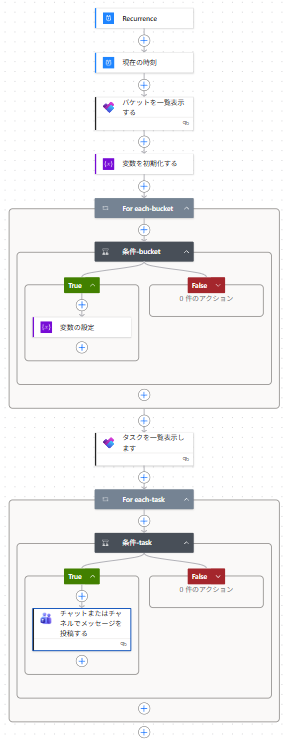
Completion Image
Ingredients
 Planner Connector
 Teams Connector
How to make
While you can set deadlines in Planner, the standard features only display the deadline. To notify when a deadline is approaching or has passed, you need to create a flow using Power Automate.
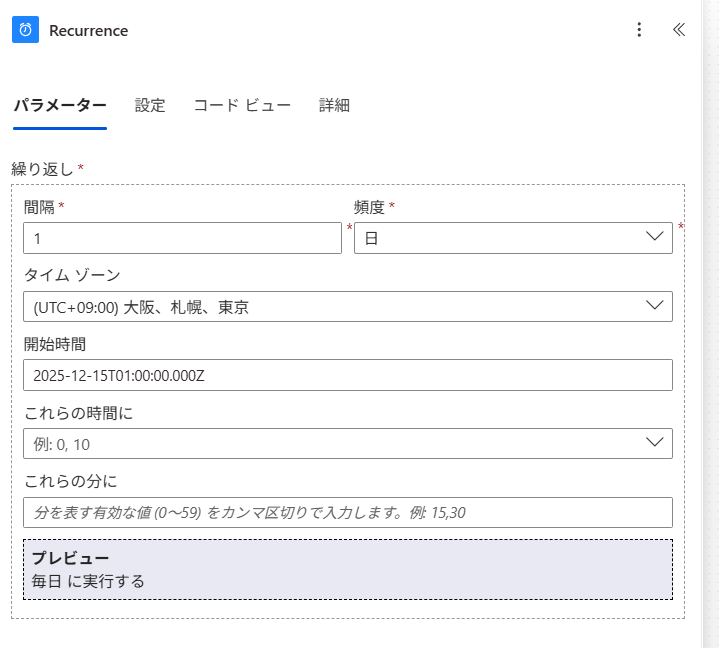
- 1. Set the trigger "Recurrence" (Scheduled cloud flow)
Set the timing for task reminders.
In this recipe, assuming it runs on a date and time basis, set [Interval] to "1" and [Frequency] to "Day".
It is fine if the preview shows "Runs every day".
- 2. Set up the action "Current time"
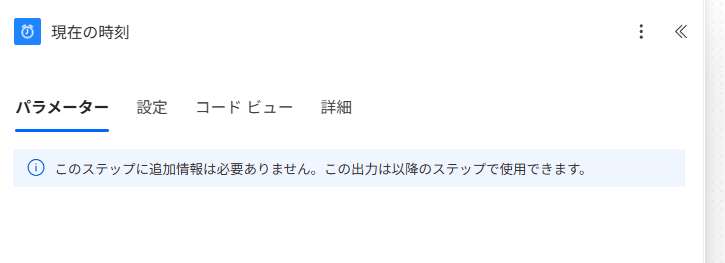
Get the date and time the flow runs to compare with task deadlines.
*In other words, it is used to extract tasks that are O days from the flow execution date.
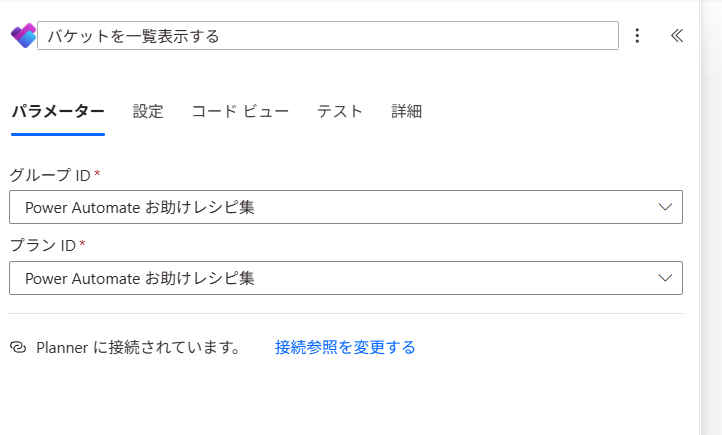
- 3. Set up the action "List buckets"
Planner has a hierarchical structure: Plan > Bucket > Task. Instead of targeting all buckets, this recipe targets a specific bucket. Set [Group Id] and [Plan Id] to the desired ones. The following can be obtained as the value, with "name" and "id" (Bucket ID) being the second and fifth items from the top.
{
    "@odata.etag": " Omitted ",
    "name": "For Verification",
    "planId": " Omitted ",
    "orderHint": "85843Zr",
    "id": " Omitted "
}
- 4. Set up the action "Initialize variable"
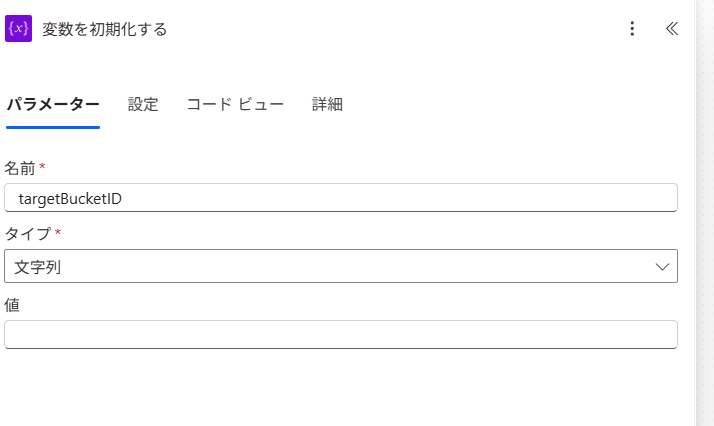
Use a variable to determine if the retrieved task is in the corresponding bucket in a later step.
Set [Name] to "targetBucketID" and [Type] to "String".
- 5. Set the condition
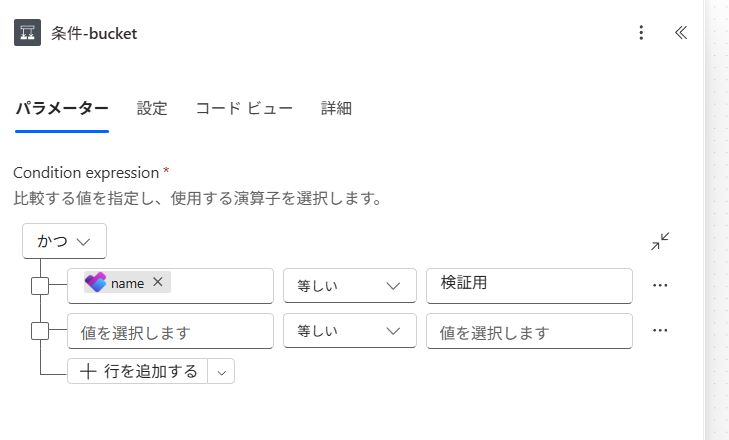
Identify the target bucket using the bucket name obtained in step 3.
The condition expression is "name" is "equal to" "For Verification".
- 6. Set up the action "Set variable"
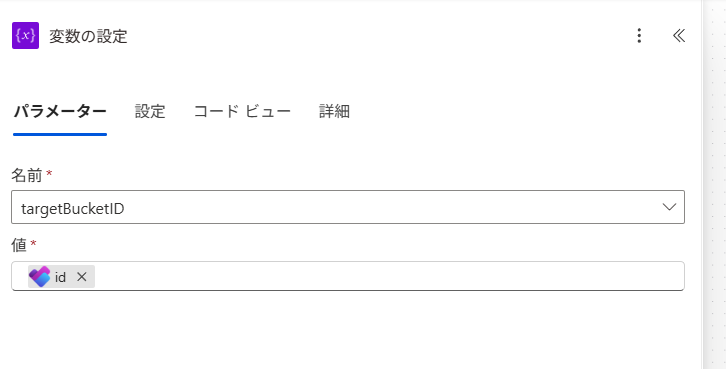
If the condition in step 5 is True, set the ID of "For Verification" to the variable.
[Name] is "targetBucketID" prepared in step 4, and [Value] is "id".
Now you can get the ID of the target bucket.
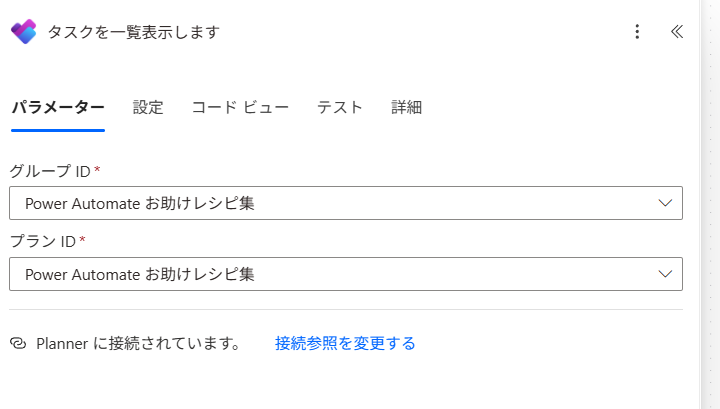
- 7. Set up the action "List tasks"
Set [Group Id] and [Plan Id] to the same ones set in step 3. You can get the following value, with "bucketId" and "title" being the third and fourth items.
{
    "@odata.etag": " Omitted ",
    "planId": " Omitted ",
    "bucketId": " Omitted ",
    "title": "Test~12/17",
    "orderHint": "8584359001340455997P2",
    "assigneePriority": "",
    "percentComplete": 0,
    "createdDateTime": "2025-12-14T10:06:51.4575653Z",
    "dueDateTime": "2025-12-17T10:00:00Z",
    "hasDescription": false,
    "previewType": "automatic",
    "referenceCount": 0,
    "checklistItemCount": 0,
    "activeChecklistItemCount": 0,
    "priority": 5,
    "id": " Omitted ",
    "createdBy": {
        "user": {
            "id": " Omitted "
        },
        "application": {
            "displayName": null,
            "id": " Omitted "
        }
    },
    "appliedCategories": {},
    "assignments": {},
    "_assignments": []
}
- 8. Set the condition
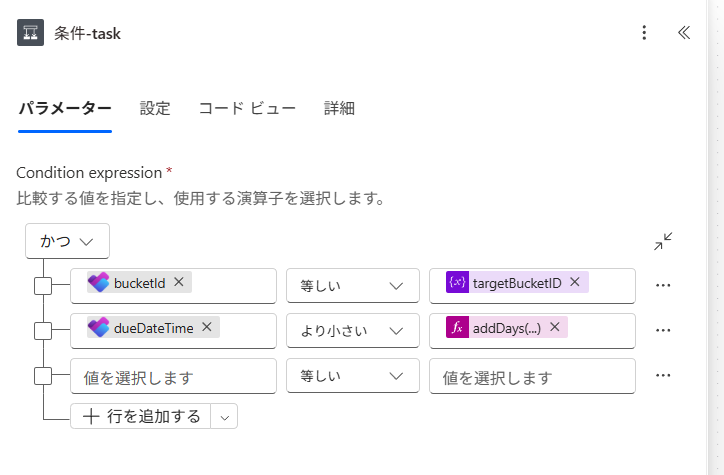
Filter all the tasks obtained in step 7 to only those corresponding to the "For Verification" plan.
This condition expression is "bucketId" is "equal to" "targetBucketID".
Also, to use the task deadline for condition determination, compare the date as well (using "And").
The condition expression is "dueDateTime" is "less than" "addDays(body('Current_time'), 7)".
*The addDays function adds 7 to the current date and time obtained in step 2.
In other words, it extracts tasks with a deadline within 7 days from now.
- 9. Set up the action "Post message in a chat or channel"
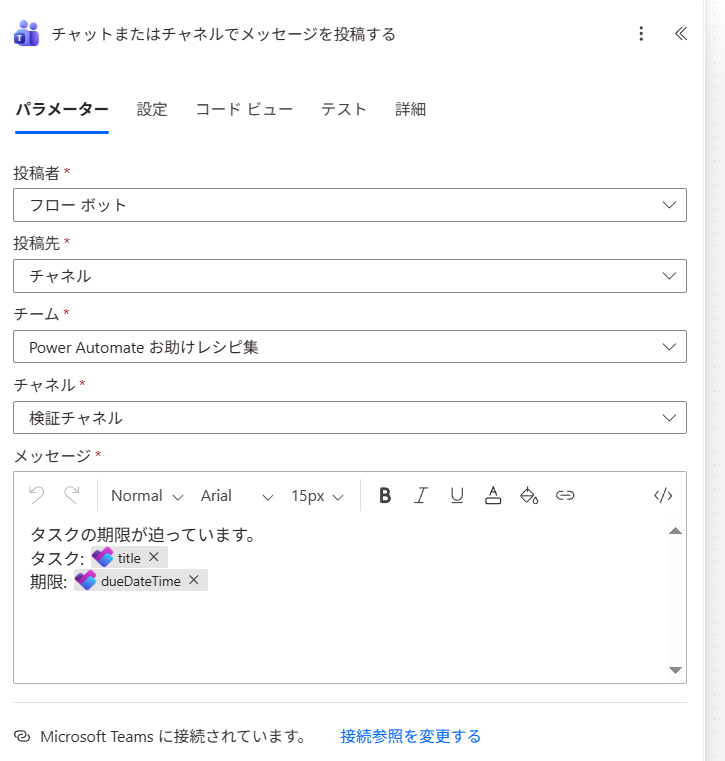
Set [Post as] and [Post in] to the desired ones.
In this recipe, posting is done by the flow bot within a specific channel.
Set [Team] and [Channel] to the desired ones.
In [Message], use "title" and "dueDateTime" to state the subject and due date of the corresponding task.
- 10. Operation Check
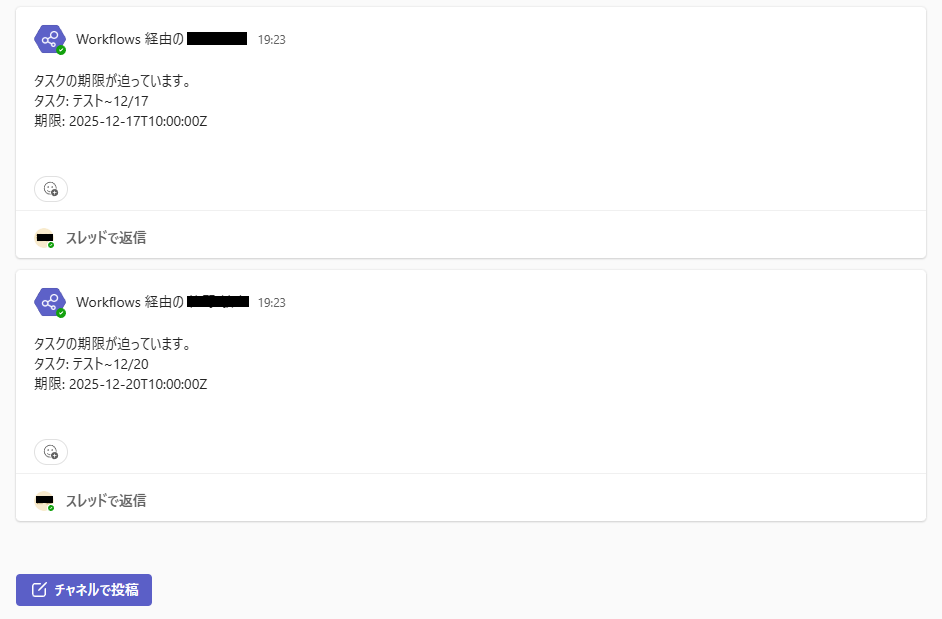
The target tasks are those in the "For Verification" plan, as shown in the figure below.
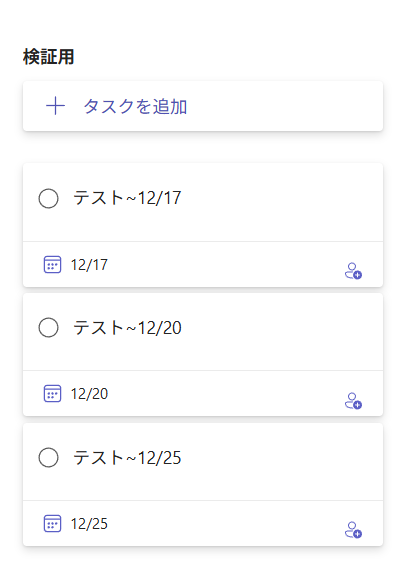
After executing the flow, if run on 12/14, only the two tasks with due dates of 12/17 and 12/20 are extracted.
Related Recipes
Related Sites
Power BI Recipe Book

A recipe site for learning practical ways to use Power BI.
We introduce recipes by purpose and function. Create beautiful charts smoothly.
Getting Started with Power Apps

A recipe site for learning how to develop Power Apps from scratch.
No specialized knowledge is required, and we introduce practical recipes for daily work.