Save Forms Responses as PDF (The Wrong Way)
Problem to solve
Are you manually converting survey or application form responses to PDF one by one? ・Converting form responses to PDF ・Capturing the screen or using the print function every time a response arrives ・Organizing PDF files takes time ・File names become inconsistent, or save locations vary, making them hard to find later This recipe solves such tedious tasks. When a response arrives in Forms, Power Automate detects it and automatically saves it as a PDF file to OneDrive. However, this seemingly simple flow has a pitfall where "it somehow doesn't work". This recipe explains the reason why it "doesn't work" and the solution, which are not taught in simple manuals.
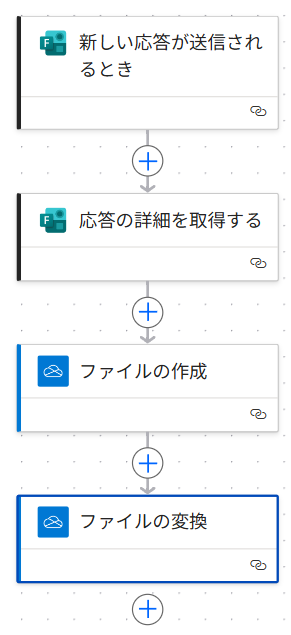
Completion Image
Ingredients
 Forms Connector
 OneDrive Connector
How to make
This is a failure example.
If you are thinking of a similar method, please consider introducing it as premium features will be required.
Responses obtained from Forms are collected into Excel by the standard function.
Instead of creating documents from Excel, we will make the Forms responses directly into PDF.
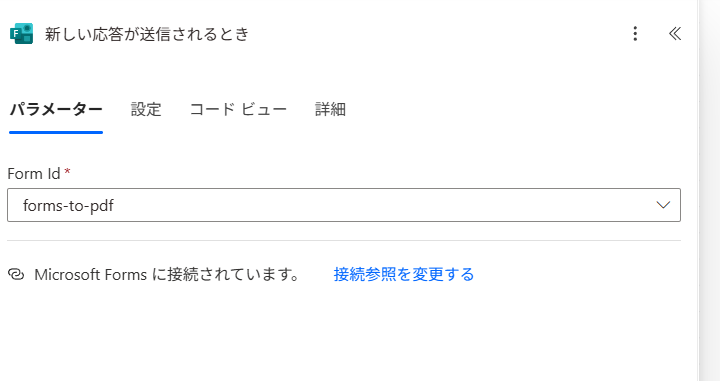
- 1. Set Trigger "When a new response is submitted"
For [Form Id], select the target Forms.
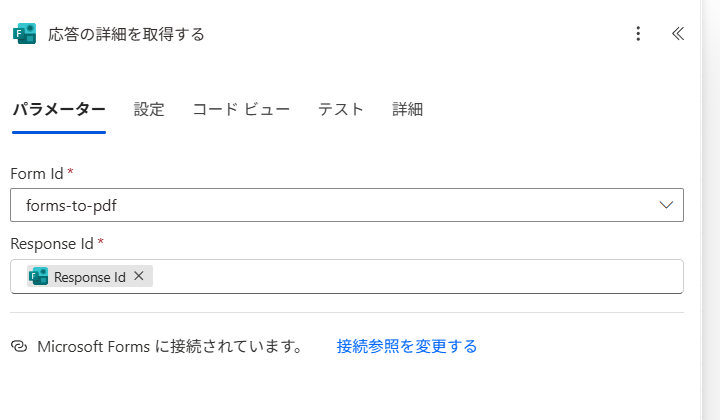
- 2. Set Action "Get response details"
For [Form Id], select the same ID as in Step 1.
For [Response Id], specify "Response Id".
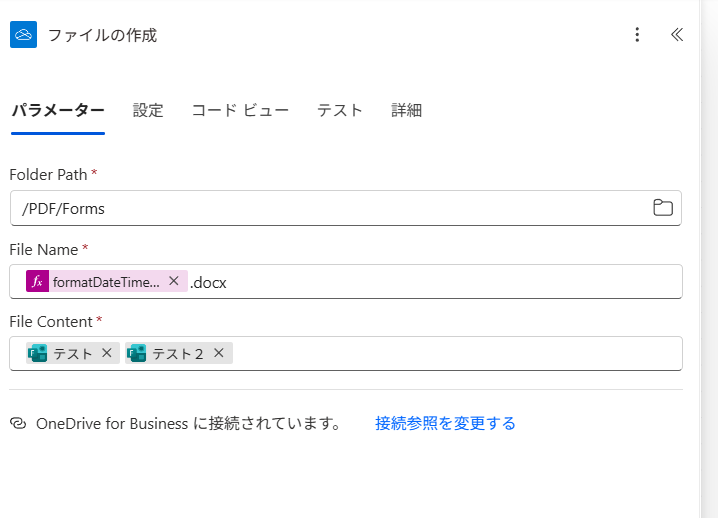
- 3. Action "Create file"
For [Folder Path], specify the file save location.
For [File Name], the file name is arbitrary, but set the extension to either Word or Excel.
* For example, if you want the file name to be the submission date of the response, use the formatDateTime function
formatDateTime(outputs('Get_response_details')?['body/submitDate'],'yyyyMMdd')
Extension is docx for Word, xlsx for Excel
For [File Content], to collect the responses obtained from Forms, specify each question of Forms in the dynamic content.
* This is the cause of failure
Forms responses cannot be converted directly to Word/Excel
To make it a Word file, the premium feature "Populate a Microsoft Word template" is required
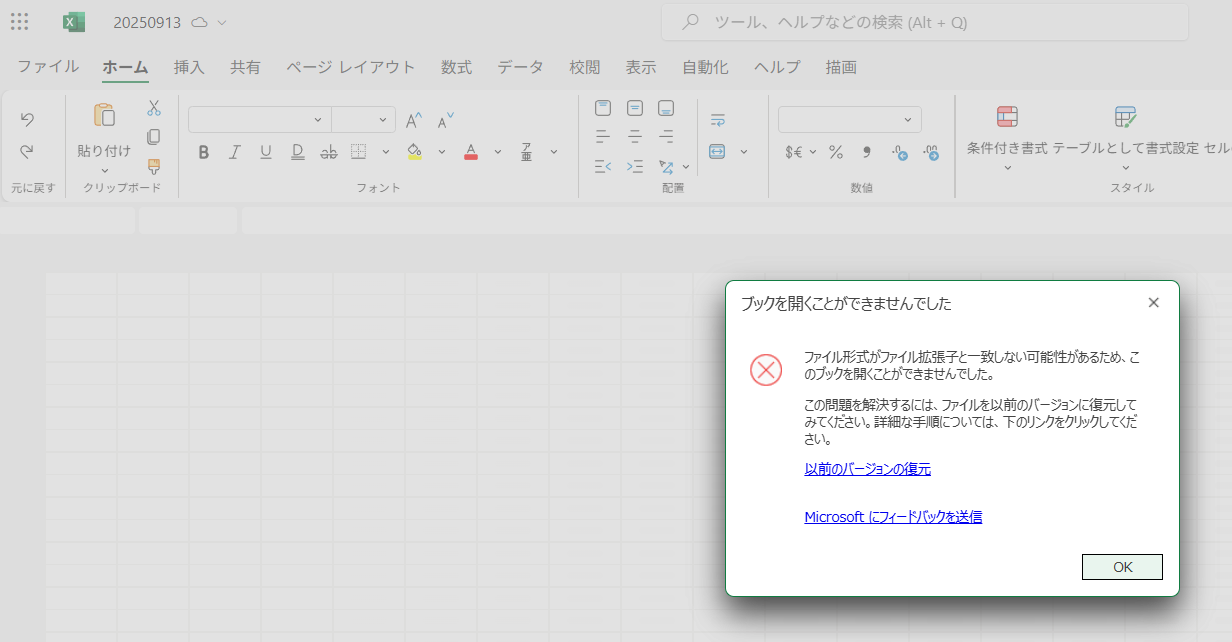
In the case of Excel, premium features are not required, but a correct file is not created and the file cannot be opened
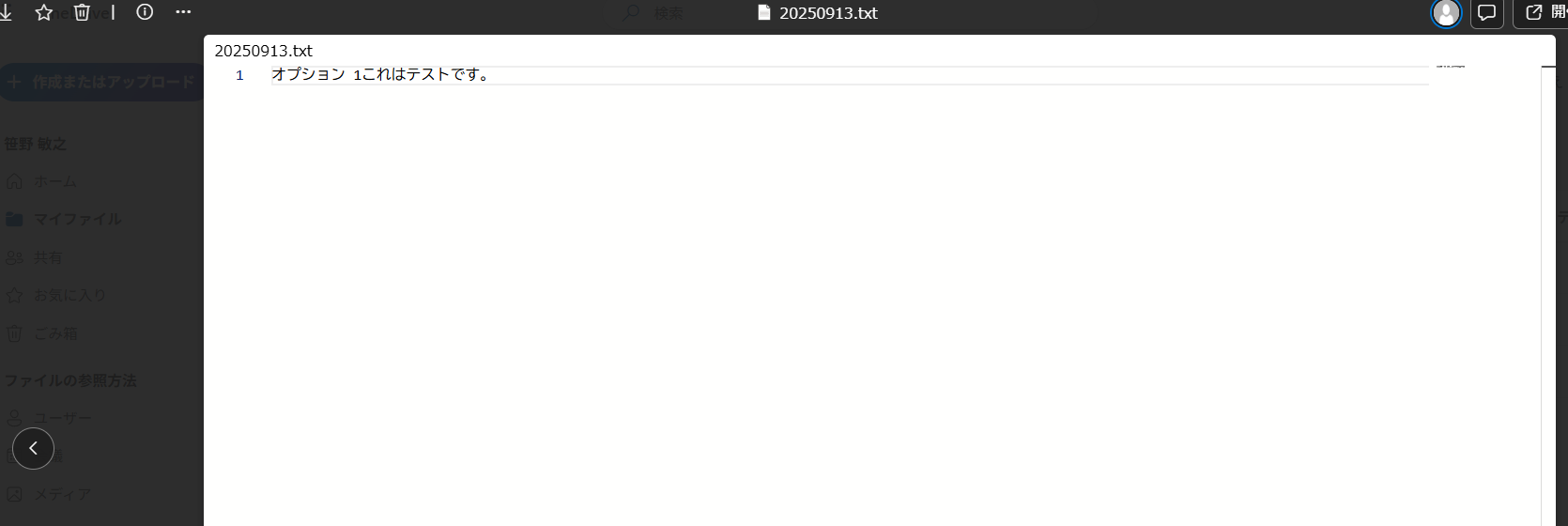
If it is a Text file, file creation is possible, but PDF conversion is not possible
- 4. Set Action "Convert file"
For [File], select the "Id" from Step 3.
For [Target format], select "PDF".
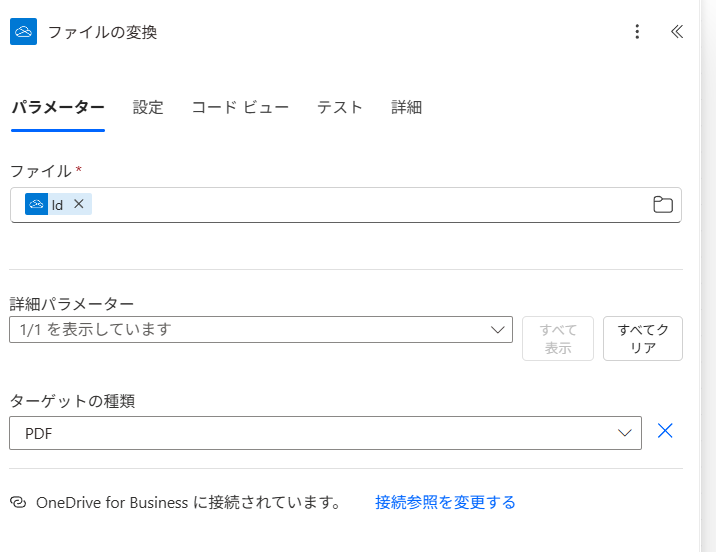
This will not work!
Let's look at the points that don't work in order.
First, suppose you prepared the following Forms.
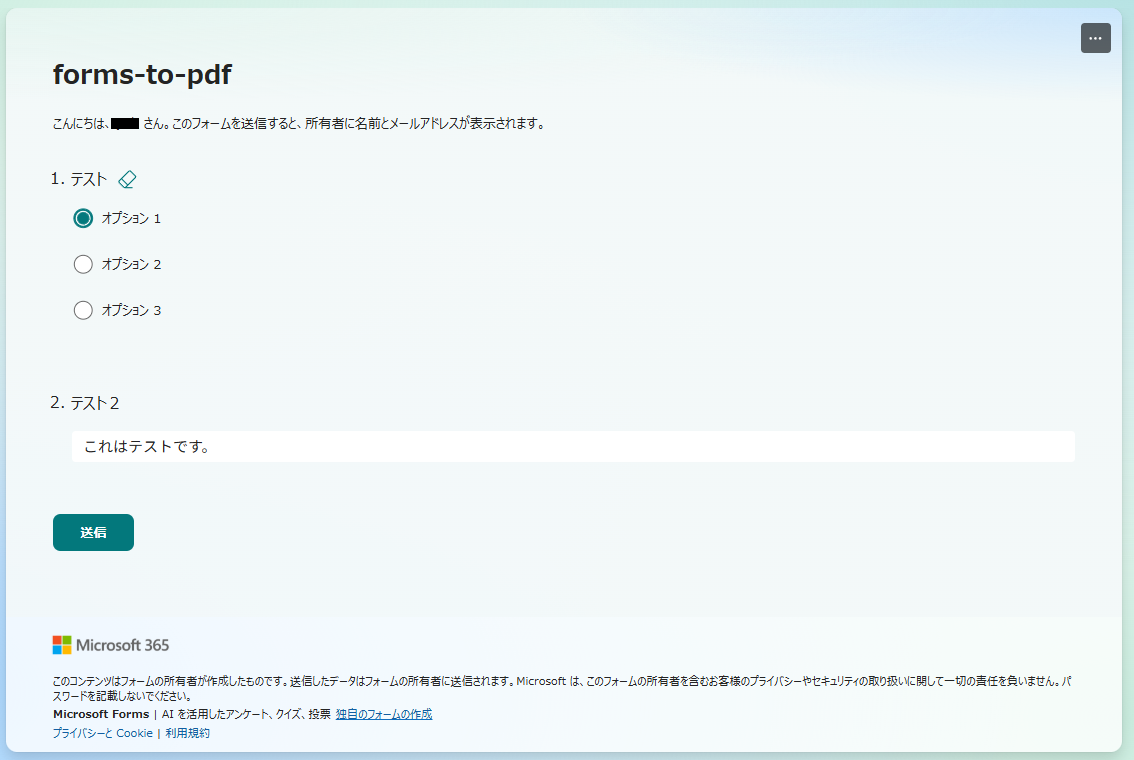
In the flow to make Forms responses into Word, if you make it Word, an error occurs as shown below.
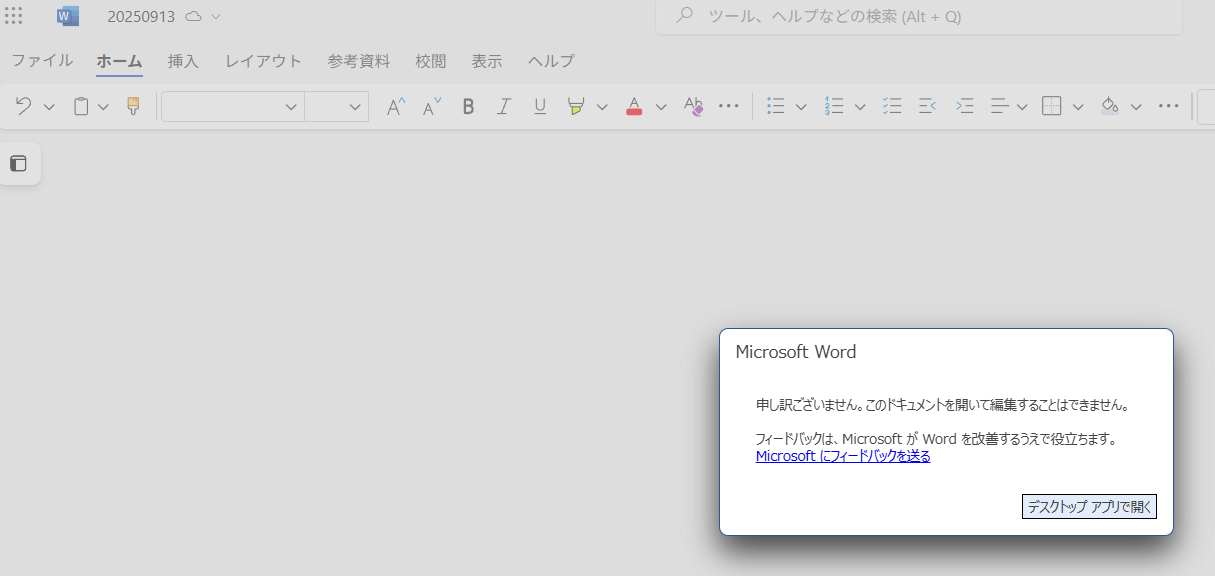
In the flow to make Forms responses into Excel, an error occurs as shown below.
In the flow to make Forms responses into Text, creation of the txt file succeeds.
However, with the "Convert file" function of the OneDrive connector, you cannot convert from txt to PDF.
Conclusion
As mentioned in Step 3, to realize this flow, the premium feature Word Online (Business) is required.
If you prepare a Word template, you can set the Forms responses, and a correct file will be created according to that template.
If a correct Word file is created, no error will occur in the PDF conversion process, and the conversion will succeed.
Related Recipes
Notify Teams After an Item is Added to SharePoint
Notify Teams of additions of items like deliverables to SharePoint so you do not miss them.
2026-02-27
Automatically Transfer Forms Responses to Excel
Automatically reflect Forms responses in Excel without opening the file every time a response is received.
2026-02-27
Related Sites
Power BI Recipe Book

A recipe site for learning practical ways to use Power BI.
We introduce recipes by purpose and function. Create beautiful charts smoothly.
Getting Started with Power Apps

A recipe site for learning how to develop Power Apps from scratch.
No specialized knowledge is required, and we introduce practical recipes for daily work.