
Automatically Transfer Forms Responses to Excel
Problem to solve
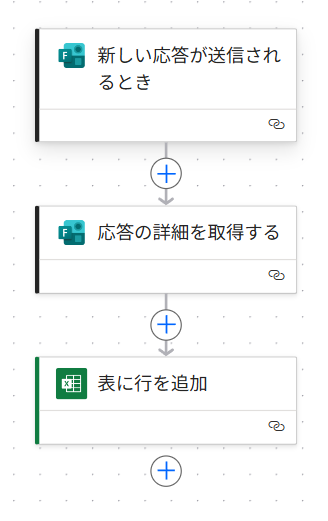
Are you manually copying and pasting survey or daily report responses into Excel? ・Manually copy-pasting into Excel every time a form response arrives ・High volume of responses leads to transcription errors and omissions ・Unable to aggregate in real-time, delaying data analysis This recipe frees you from such tedious tasks. When a response is submitted to Microsoft Forms, Power Automate automatically retrieves the content and adds a row to a specified Excel sheet. By setting up this flow, manual data entry becomes zero, and the latest data is reflected in real-time, allowing you to always analyze and aggregate based on accurate information.
Completion Image
Ingredients
 Forms Connector
 Excel Connector
How to make
Forms has a basic feature to aggregate responses into Excel.
However, with the basic feature, responses are not reflected in Excel unless you open that Excel file.
With Power Automate, you can reflect the latest responses without opening Excel.
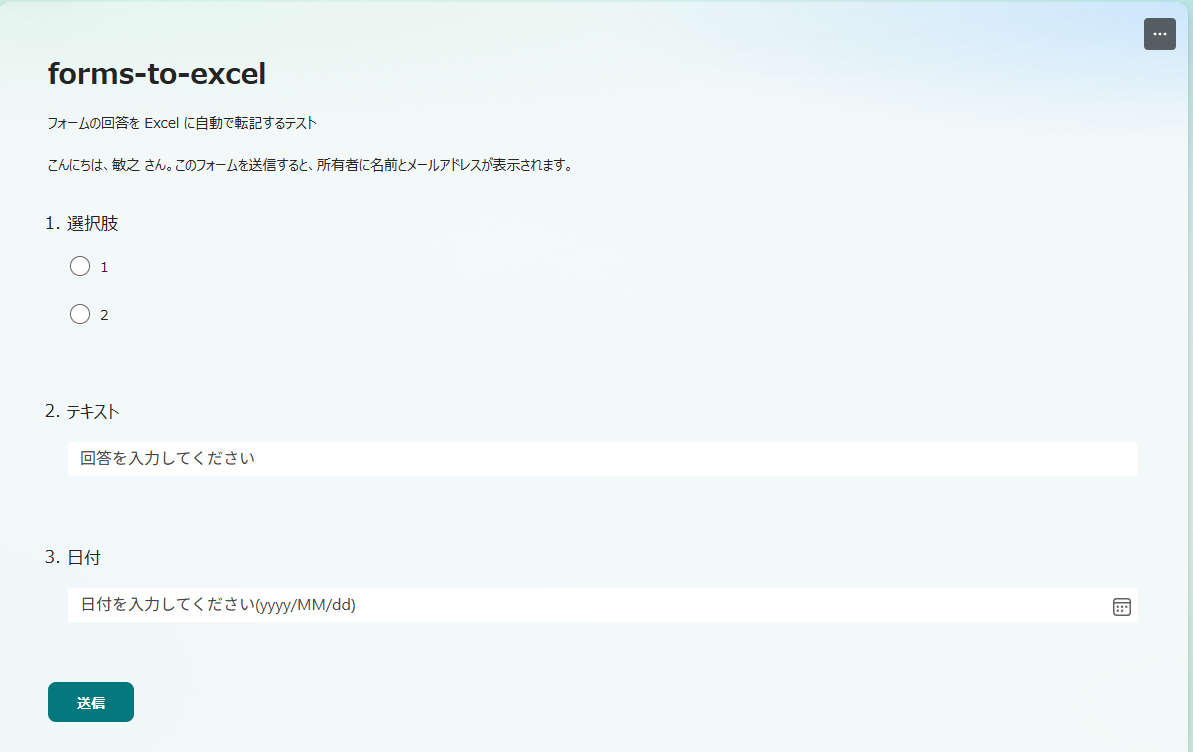
- 1. Create Forms
First, create a Form.
Here, the question items created in Forms will become the table items in Excel where the responses are transferred.
* It is smoother if you also prepare the Excel file and create the table at this timing.
To create a table in Excel, select the target cell range and execute Insert -> Table.
It is good to give the table an easy-to-understand name (can be changed from Table Design).
When creating the table, make sure the first row is the header (used in later steps).
If you can't visualize it, please check the image of the completed Excel at the end of the page.
- 2. Set Trigger "When a new response is submitted"
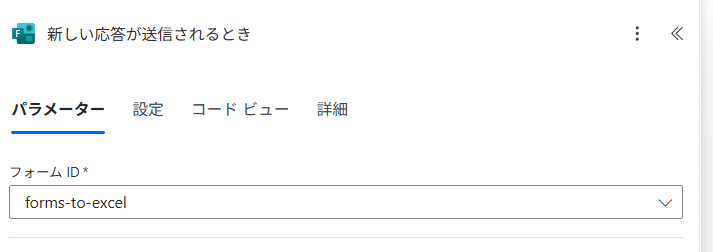
Select the Forms created in Step 1.
Since the trigger is used as the starting point of the flow, the retrieval of Forms responses will be set in the next step.
- 3. Set Action "Get response details"
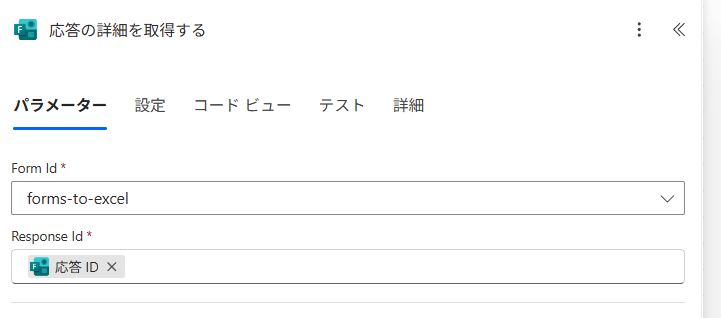
For [Form Id], select the same one as in Step 2.
For [Response Id], select "Response Id".
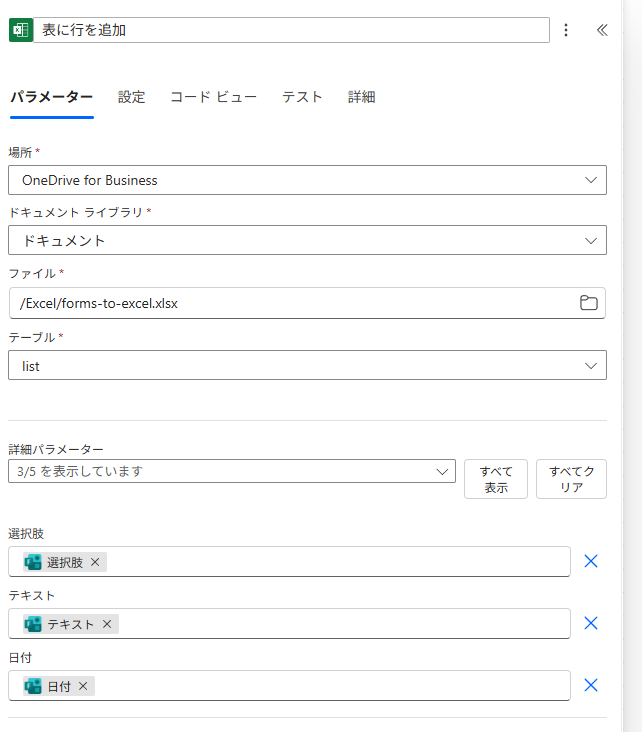
- 4. Set Action "Add a row into a table"
For [Location], besides your own OneDrive, you can also specify Excel managed in SharePoint.
For [Table], select the table name created in Excel.
From [Advanced parameters], select each item of the Excel table.
Since the selected items will reflect the values obtained from dynamic content, select the corresponding question items from Forms.
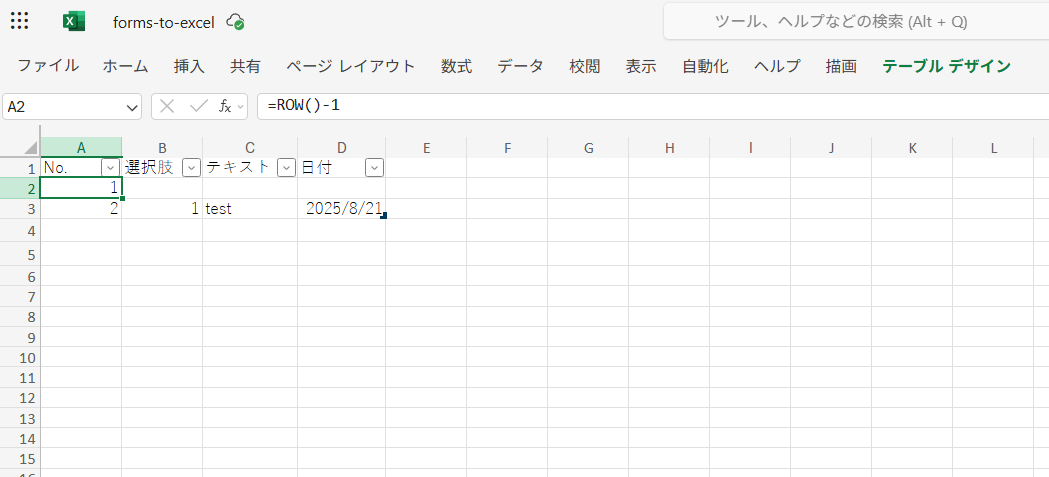
Responses are transferred as shown in the figure below.
* By entering the function =ROW()-1 in [No.], numbers will be automatically added according to the transcription of responses.
Since No.1 already has a function, the second row is judged as a row with a value (therefore, it is appended from the 3rd row of No.2).
Related Recipes
Related Sites
Power BI Recipe Book

A recipe site for learning practical ways to use Power BI.
We introduce recipes by purpose and function. Create beautiful charts smoothly.
Getting Started with Power Apps

A recipe site for learning how to develop Power Apps from scratch.
No specialized knowledge is required, and we introduce practical recipes for daily work.