Get a List of Teams Posts and Generate Access URLs
Problem to solve
Do you have the following problems with Teams post threads? - Post threads in channels are disorganized and unmanageable - You want to check the current number of posts - You want to manage which post has what interaction Using this recipe, you can get a list of post threads in a specific channel and also create URLs to access the respective posts.
Completion Image
Ingredients
 Teams Connector
 Excel Connector
How to make
As interactions in Teams increase, posts in channels can become disorganized and hard to manage. To understand the current state of posts, retrieve a list to see how many posts there currently are. Also, after getting the posts, create URLs so you can understand what interactions are taking place.
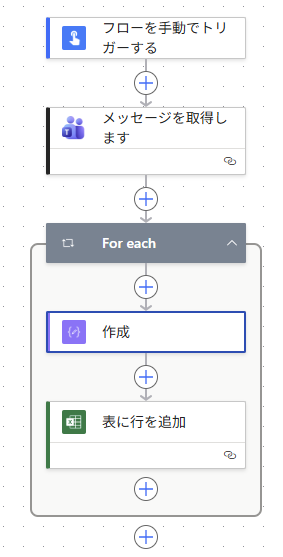
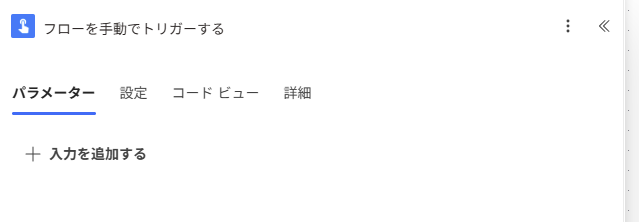
- 1. Set the trigger "Manually trigger a flow"
In this recipe, retrieving the post list is expected to be done at any timing, so it's a manual trigger.
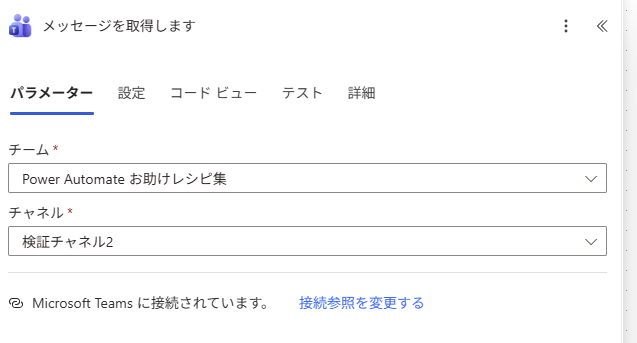
- 2. Set up the action "Get messages"
Set the [Team] and [Channel] that you want to understand the current state of.
*Since the return value of this action is a list of posts (there are multiple posts), a foreach will be automatically created from the next action.
- 3. Set up the action "Compose"
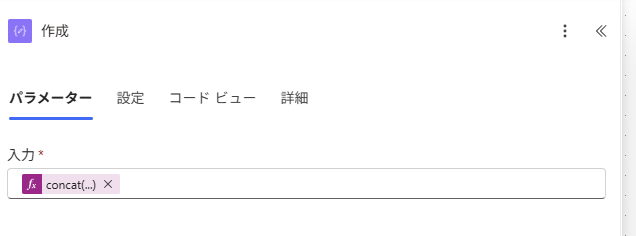
Create this inside the foreach from this action. To generate an access URL for the retrieved post, create the following expression.
concat('https://teams.microsoft.com/l/message/{Channel_ID}@thread.tacv2/', items('For_each')?['id'])
The concat function combines text, attaching the "post ID" obtained in step 2 to the Teams URL starting with "https".
To check the Teams URL, for example, view the relevant post in Teams and select "Copy link".
The structure of the obtained URL is as follows, and what is needed is the part before the "post ID".
https://teams.microsoft.com/l/message/{Channel_ID}@thread.tacv2/{Post_ID}?tenantId={Tenant_ID}&groupId={Group_ID}&parentMessageId={Parent_Message_ID}&teamName={Team_Name}&channelName={Channel_Name}&createdTime={Created_Time}
- 4. Set up the action "Add a row into a table"
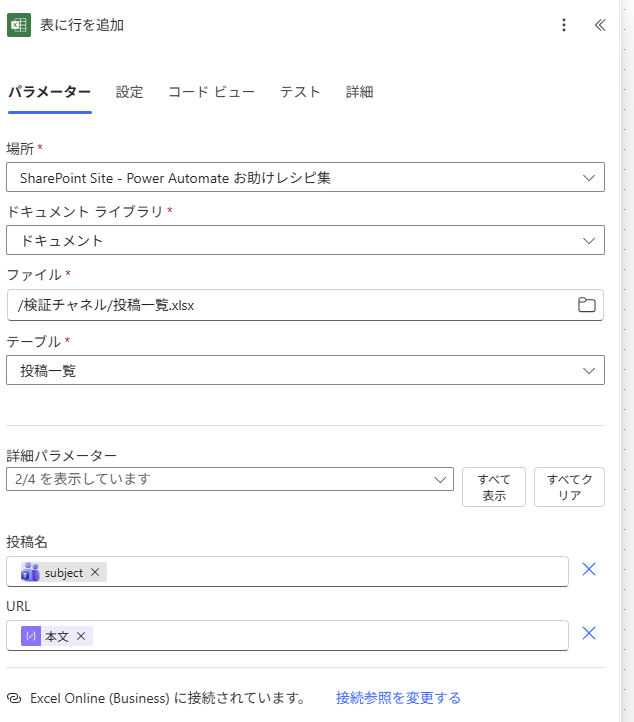
Set [Location] to [Table] according to the Excel file used for retrieval.
Note that you need to create a table for retrieving the list in Excel in advance.
Prepare columns such as "Post Name" and "URL" there, and set them from the advanced parameters of this action.
- 5. Operation Check
When you run the flow, a list is created in Excel as shown in the figure below.
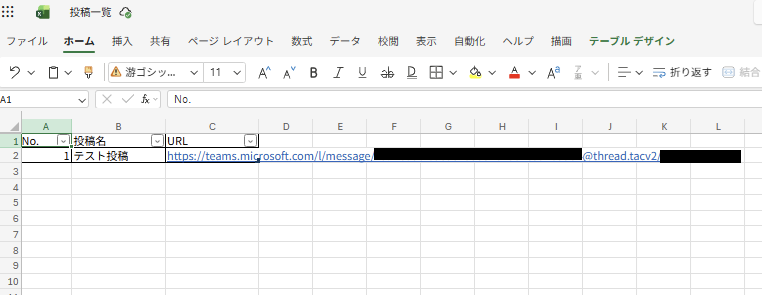
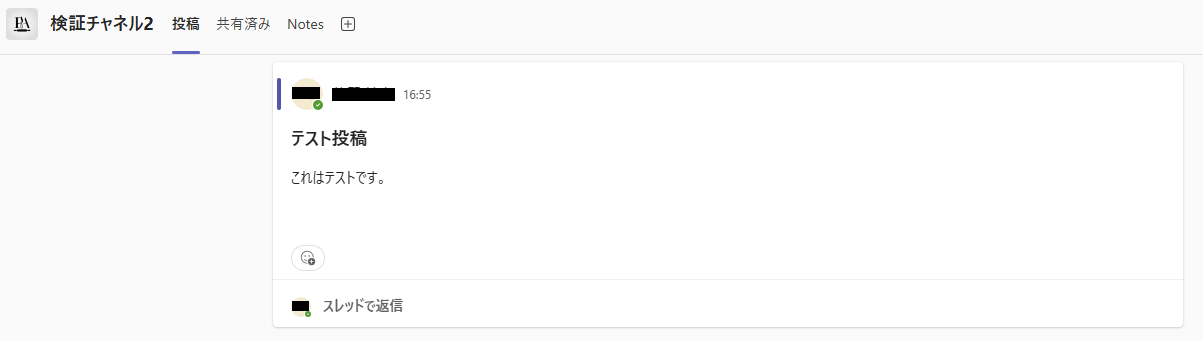
By clicking the URL in the URL column, you can access the relevant post.
Related Recipes
Related Sites
Power BI Recipe Book

A recipe site for learning practical ways to use Power BI.
We introduce recipes by purpose and function. Create beautiful charts smoothly.
Getting Started with Power Apps

A recipe site for learning how to develop Power Apps from scratch.
No specialized knowledge is required, and we introduce practical recipes for daily work.