Get Teams Post Subject from Thread Replies
Problem to solve
Do you have the following problems with workflows originating from replies to Teams posts? - I want to quickly know which post (thread) it is when there's a reply containing a specific keyword - I want to quickly check and record the subject or summary of the original post just by looking at the reply message - I want to trigger subsequent processes (such as integration with a task management tool) based on a thread reply Using this recipe, the subject of the original post is automatically retrieved when a reply meets specific conditions. This allows you to instantly identify and link the original information from a reply, simplifying task management and information aggregation.
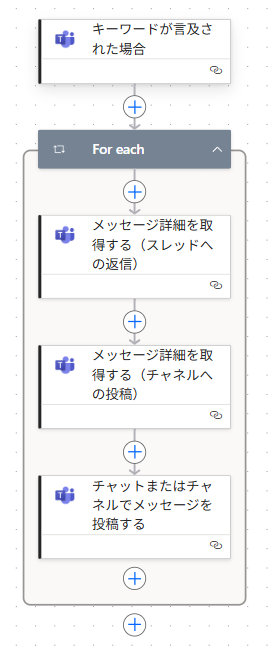
Completion Image
Ingredients
 Teams Connector
How to make
There are several ways to use the subject of a Teams post generically. For example, it's easier to manage by sharing the name (subject) with SharePoint list items or approval flow request names. In this recipe, when a specific post receives a reply, the subject of the post is retrieved based on the content of that reply (such as "Approved").
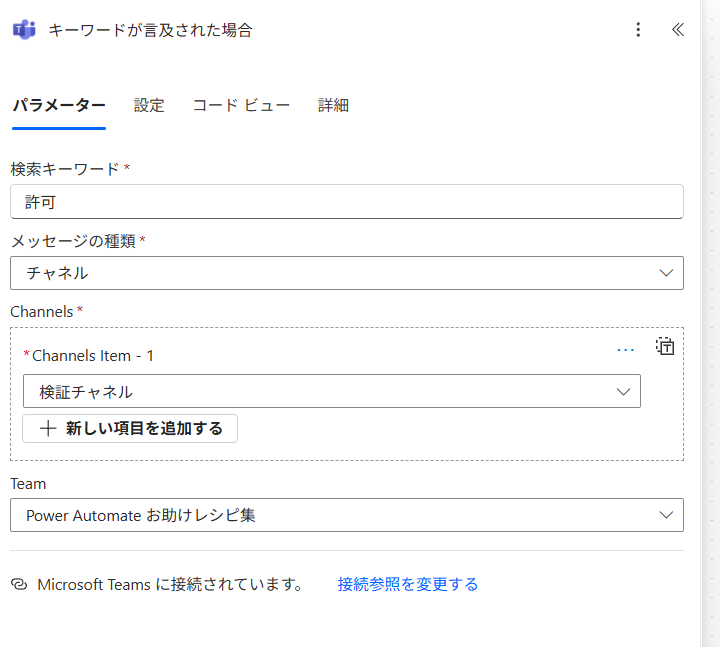
- 1. Set the trigger "When keywords are mentioned"
Set the word to be extracted for [Search Keyword].
For [Message type], choose either Group chat or Channel.
If you choose "Channel", select the team containing the corresponding channel for [Team].
Set the target channel ID for [Channels].
*It is convenient to input it directly from the T mark "Switch to detailed input of array items" on the right.
To find the ID, check the corresponding channel in Teams, click the "..." on the right side of the channel screen, and select "Copy link".
You will get a URL, and the string between https://teams.microsoft.com/l/channel/ and / is the ID.
If you don't know it, you can also paste the URL into Copilot and ask.
- 2. Set up the action "Get message details"
In this recipe, "Get message details" is used twice.
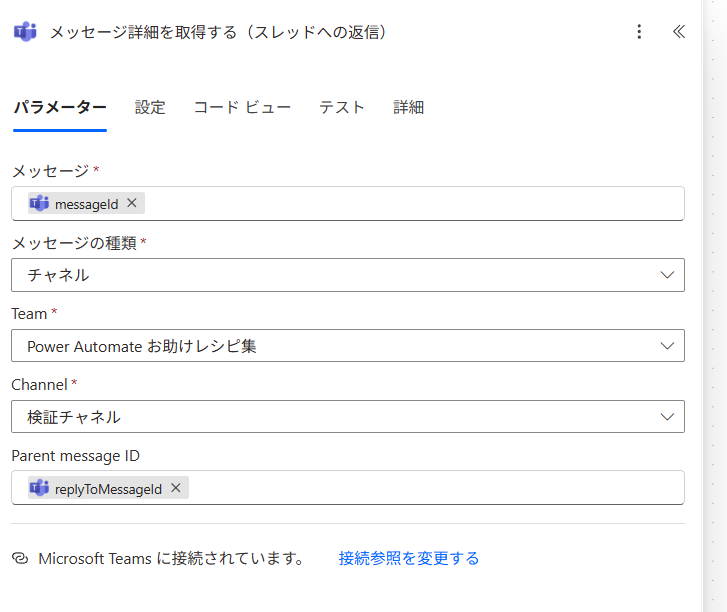
First, in this step, get the details of the reply message to the post.
Select the same ones as step 1 for [Team] and [Channel].
Set [Message] to "messageId" and [Parent message ID] to "replyToMessageId".
*The relationship between a post and a reply corresponds to a parent and child message.
Parent message means the parent message.
Since there can be multiple messages mentioning the keyword, a Foreach is automatically created.
- 3. Set up the action "Get message details"
In the second "Get message details", get the details of the parent message (post).
Select the same ones as step 2 for [Team] and [Channel].
Set [Message] to "Reply To Id".
*Do not enter anything for [Parent message ID].
This is because there is no parent message for the posted message.
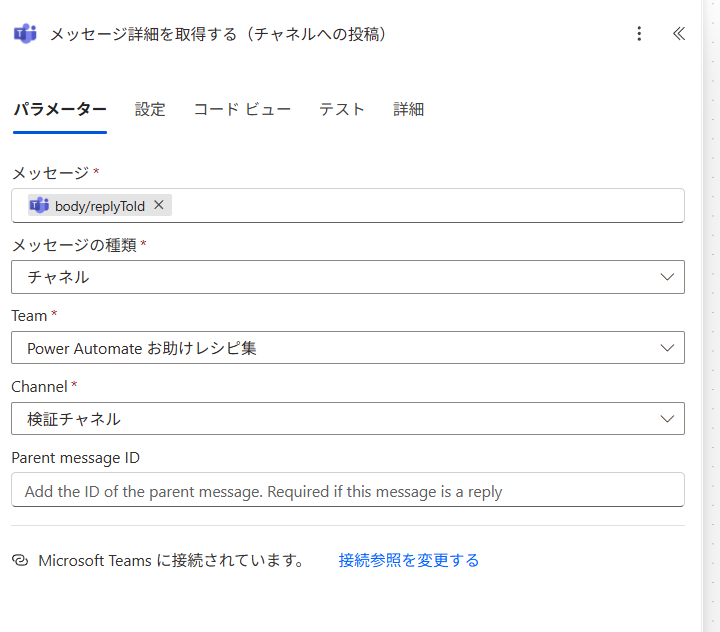
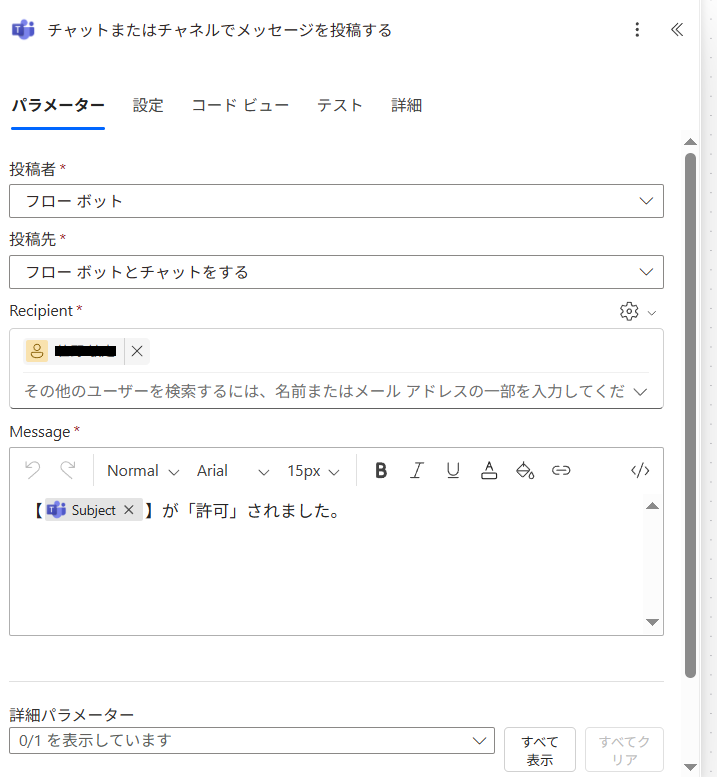
- 4. Set up the action "Post message in a chat or channel"
This action is to confirm the output of steps 1-3.
To check if the subject was retrieved, set [Message] to "Subject".
*As mentioned at the beginning, integration with SharePoint list items or approval flow request names is also possible.
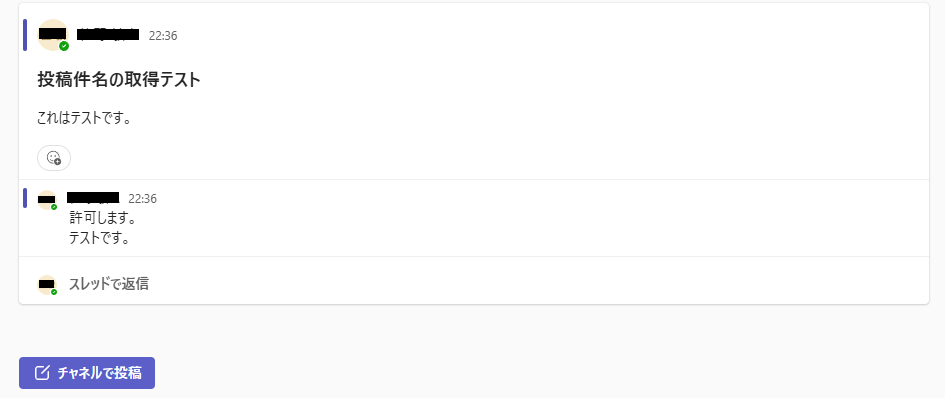
As shown in the figure below, reply to a post in a thread.
In addition, include the word set as the extraction keyword, such as "Approved", in the reply.
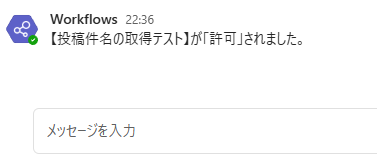
When a reply containing the keyword is made, the original post message is identified.
The subject of the identified post message is retrieved, and the flow bot chats it to an individual.
Related Recipes
Related Sites
Power BI Recipe Book

A recipe site for learning practical ways to use Power BI.
We introduce recipes by purpose and function. Create beautiful charts smoothly.
Getting Started with Power Apps

A recipe site for learning how to develop Power Apps from scratch.
No specialized knowledge is required, and we introduce practical recipes for daily work.